


Microsoft Purview Endpoint DLP Always-On Diagnostics
Updated: Apr 22

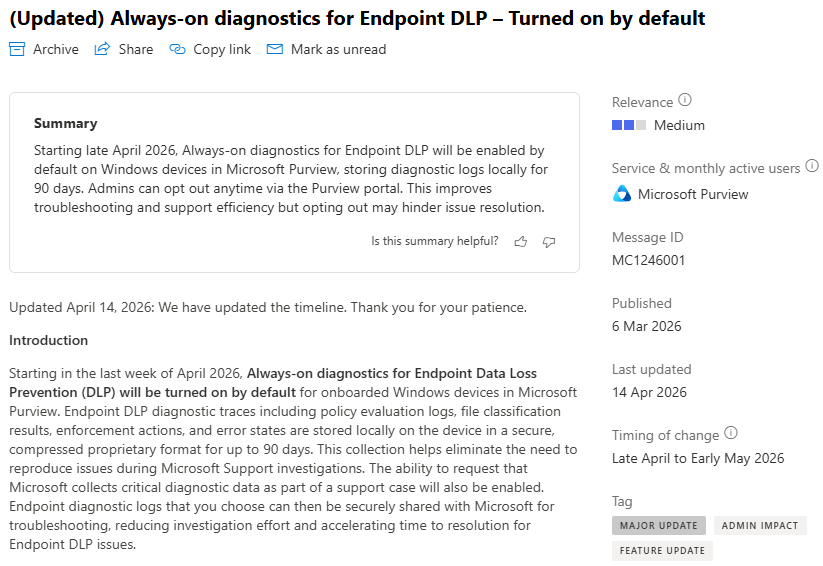
There has been a new update to this roadmap item under a new message centre ID: MC1246001, confirming that the Always-on diagnostics is going to be turned on by default, with rollout is starting in the last week of April.
Introduction
In my last post on Microsoft Purview Data Loss Prevention Diagnostics, I mentioned a feature that’s currently rolling out which makes troubleshooting endpoint issues much easier, especially when you need logs from user devices and don’t want to rely on back-and-forth with end users.
That feature is Endpoint DLP always-on diagnostics (Phase 2), and it’s a solid improvement for anyone working in Microsoft Purview.
If you’ve ever tried to troubleshoot endpoint DLP, you’ll know how awkward it can be. You either end up chasing users for logs, walking them through steps, or trying to reproduce the issue yourself, which rarely goes smoothly.
This flips that process on its head by letting you collect logs directly from Windows devices without involving the user, which makes troubleshooting faster and far more reliable.
Table of contents
TL;DR
Microsoft Purview Endpoint DLP Always-On Diagnostics lets admins collect troubleshooting logs directly from Windows devices without involving the user, which makes endpoint DLP investigations much faster and easier. It is going to be enabled by default, or you can turn it on manually here:
=> Microsoft Purview portal > Settings > Data Loss Prevention > Always-on diagnostics (preview) -> toggle On -> set retention and storage limits -> Save
If you also want Microsoft to receive the logs for support cases, turn on:
-> Send specific trace logs to Microsoft
Before using it, make sure devices are onboarded, online, and allowed to reach Microsoft endpoints, and if you are using Windows Server, enable Endpoint DLP for onboarded servers first. Official guide: https://learn.microsoft.com/purview/dlp-always-on-diagnostics
What is Microsoft Purview Endpoint DLP always-on diagnostics
Microsoft Purview Endpoint DLP always-on diagnostics (Phase 2) allows admins to collect diagnostic traces directly from Windows endpoints and send them to Microsoft during support investigations, without any user involvement.
It’s tied to:
A few important things to know:
It is not enabled by default
It requires manual admin action to turn on
It does not affect existing DLP policies
Official documentation: https://learn.microsoft.com/purview/dlp-always-on-diagnostics
Why is this feature relevant?
Endpoint DLP troubleshooting has always been one of the more frustrating parts of working with Purview. When something doesn’t behave as expected, you usually need logs, and getting those logs often means chasing users, waiting around, and hoping the issue gets reproduced properly. With always-on diagnostics enabled, logs are already being collected in the background, so when something breaks, you can skip the setup and go straight to analysing the issue. It reduces delays, improves accuracy, and makes support cases much easier to deal with.
Rollout details and key changes
This feature started rolling out globally in March 2026.
Once enabled:
Admins can request logs directly from devices
Users are not interrupted
Logs can be uploaded straight to Microsoft support
Troubleshooting becomes significantly faster
Initially, this feature was not planned to be enabled by default, however the updated Message centre item now states otherwise.
How always-on diagnostics works
Always-on diagnostics continuously collects trace logs on endpoint devices in the background. So instead of reacting to an issue and then trying to gather logs, you already have the data available when something goes wrong.
That means you don’t need to:
Reproduce the issue again
Ask users to run tools
Manually configure logging
You simply request the logs and move forward with troubleshooting or send them directly to Microsoft.
Upload behaviour and limitations
A few things to keep in mind:
Log uploads typically happen within 24 hours
Devices must stay online during upload
Only one collection request per device is allowed at a time
Requests can fail if devices are offline or unavailable
If something fails, you’ll need to retry the request manually.
Log security and data handling
These logs are handled entirely by Microsoft:
Stored in Azure using secure storage
Kept in a proprietary format
Only accessible by authorised Microsoft personnel
Fully audited for access
Logs remain in your data region and are retained for 180 days before being automatically deleted.
Permissions and prerequisites
Required roles
Entra ID roles:
Compliance Administrator
Security Administrator
Global Administrator
Purview roles (tenant-level):
Organization Configuration
Compliance Admin
Security Admin
DLP Compliance Management
Information Protection Admin
For a deeper dive on permissions:
Prerequisites
Devices must be onboarded to Purview
Devices must be online and reporting
Network access to Microsoft endpoints must be allowed
HTTPS traffic must not be blocked
Supported operating systems
Supported platforms include:
Windows 10 and Windows 11
Windows Server 2019, 2022, and 2025
Important note:
Endpoint DLP is disabled by default on Windows Server, so you’ll need to enable it manually before using diagnostics. Here's how:
Go to Purview portal.
Navigate to Settings > Data Loss Prevention > Endpoint DLP settings
Find 'Endpoint DLP support for onboarded servers'
Toggle it to On

How to enable always-on diagnostics in Microsoft Purview
This is the key step, since nothing happens until you turn it on.
Go to the Purview portal
Navigate to Settings > Data Loss Prevention
Select Always-on diagnostics (preview)
Toggle it to On
Set cache storage, 90 days recommended
Set device storage, between 500 MB and 1500 MB
Save

To enable uploads:
Turn on Send specific trace logs to Microsoft

How to request device logs
Once enabled, collecting logs is straightforward.
You can request logs from:
Devices
Alerts
Activity explorer
Steps:
Select the device or event
Choose Request device log
Set date range
Add description
Submit
Then:
Wait for completion
Grab the request number
Share it with Microsoft support
Conclusion
Always-on diagnostics for Endpoint DLP removes a lot of friction from troubleshooting by letting you collect logs directly from devices without involving users, which saves time, simplifies investigations, and makes resolving issues much more efficient.
If you’re working with DLP regularly, it’s definitely worth enabling sooner rather than later.

Comments